Read this Knowledge Base article to learn how to wipe data from a BitLocker-encrypted drive using BitRaser Drive Eraser software (Cloud variant).
BitLocker is a full disk encryption feature introduced by Microsoft. It is designed to protect the data stored on storage drives from unauthorized access by encrypting the operating system, system files, and user data. Encryption can be secured using a password, PIN, TPM, or recovery key to ensure sensitive data remains protected.
BitLocker allows users to choose between encrypting only the used disk space or encrypting the entire drive. (See Image 1)

Image 1: BitLocker Drive Encryption
- When the “Used Disk Space Only” option is selected, the encrypted drive can be erased without the BitLocker password or recovery key.
- However, for drives encrypted using the “Encrypt Entire Drive” option, you would require the BitLocker password or recovery key to perform complete data erasure.
This KB explains how to wipe a BitLocker-encrypted drive that is configured with the “Used Disk Space Only” encryption option using BitRaser Drive Eraser & Diagnostics software.
Stage 1: Download BitRaser ISO and Create Bootable USB
Step 1: Log in to your BitRaser Cloud account using the credentials shared via email after purchase. Navigate to ‘Download BitRaser’ and click on ‘Cloud Variant: BitRaser Drive Eraser & Diagnostics’ to download the ISO file (See Image 2).

Image 2: Download Cloud Variant of BitRaser Drive Eraser & Diagnostics Software
Step 2: Visit Rufus ' official website to download Rufus, an open-source tool for creating bootable USB drives. Follow the steps mentioned in the How to Create a Bootable USB Using Rufus? KB to create a BitRaser bootable USB.
Stage 2: Wipe BitLocker Encrypted Drive
Step 1: Connect the BitRaser bootable USB to the laptop and power on the system. Open the Boot Menu using the appropriate key for your device (See Image 3). Select the BitRaser bootable USB and press Enter. When the BitRaser Boot Menu appears, press Enter again to proceed (See Image 4).

Image 3: One-Time Boot Menu

Image 4: BitRaser Boot Menu
The BitRaser interface will load and display the connected storage drives (See Image 5).

Image 5: BitRaser Drive Eraser & Diagnostics Erasure UI
Step 2: Connect the system to the internet and log in to BitRaser Cloud to acquire licenses and enable report upload.
- Click the Settings icon and open the Network tab
- Connect to the Internet using Ethernet, DHCP, or Wi Fi (See Image 6a)
Next, open the BitRaser Server tab:
- Enter BitRaser Cloud credentials and connect the application to the BitRaser server (See Image 6b)

Image 6a: Connect Application to Network

Image 6b: Connect Application to BitRaser Server
The system will automatically fetch available licenses from your BitRaser Cloud account.
Step 3: Select the BitLocker-encrypted drive, choose the erasure method, and then click ‘Erase’.
Click ‘Proceed’ to begin the data erasure process (See Images 7a & 7b).

Image 7a: Select BitLocker-Encrypted Drive to Erase

Image 7b: Confirm Erasure
You can monitor the erasure progress directly on the screen and through the screensaver view (See Images 8 & 9).

Image 8: Erasure Progress Screen

Image 9: Erasure Progress Screensaver
Once the process is completed, a confirmation screen with a green tick will appear (See Image 10).

Image 10: Erasure Completion Screensaver
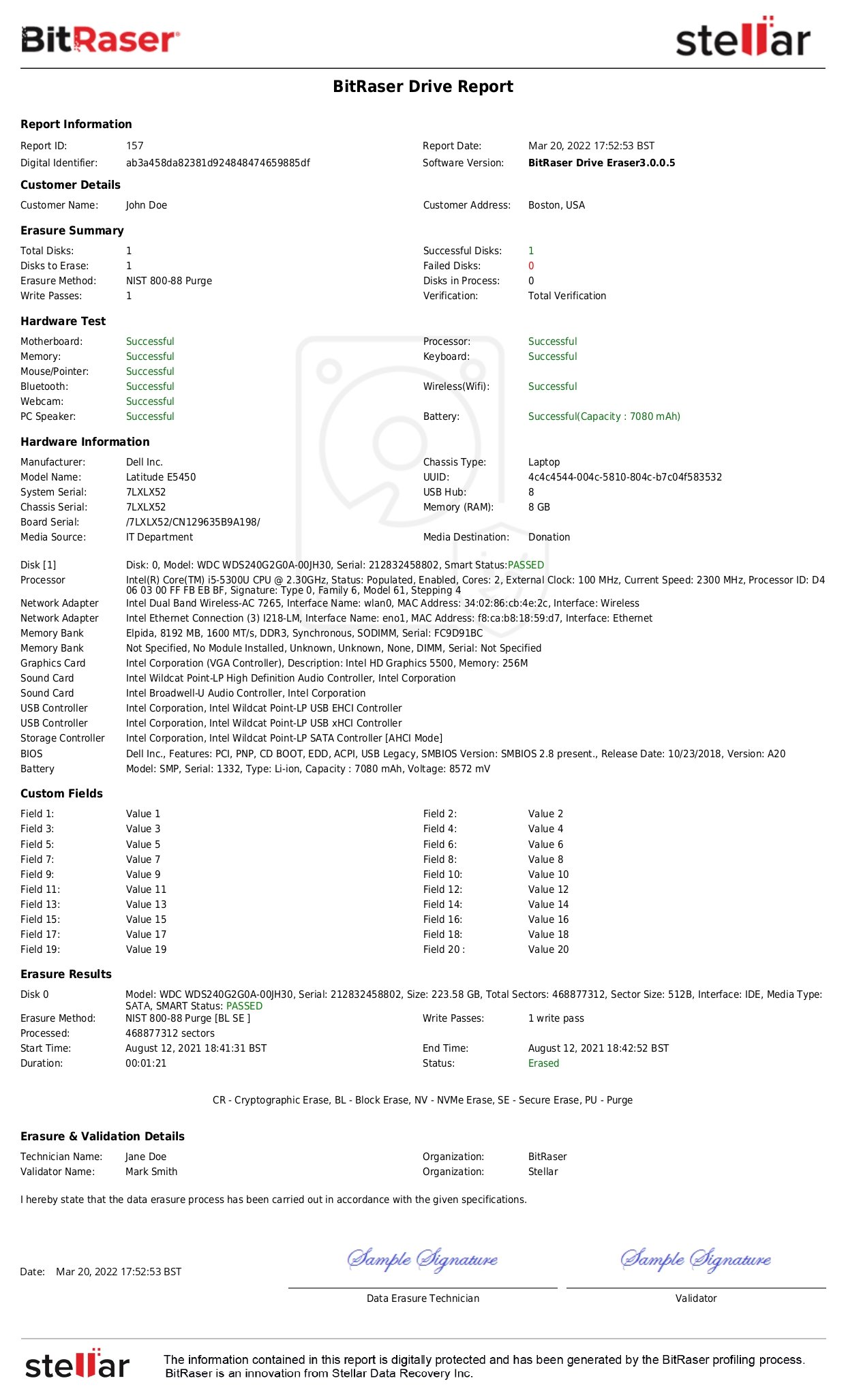
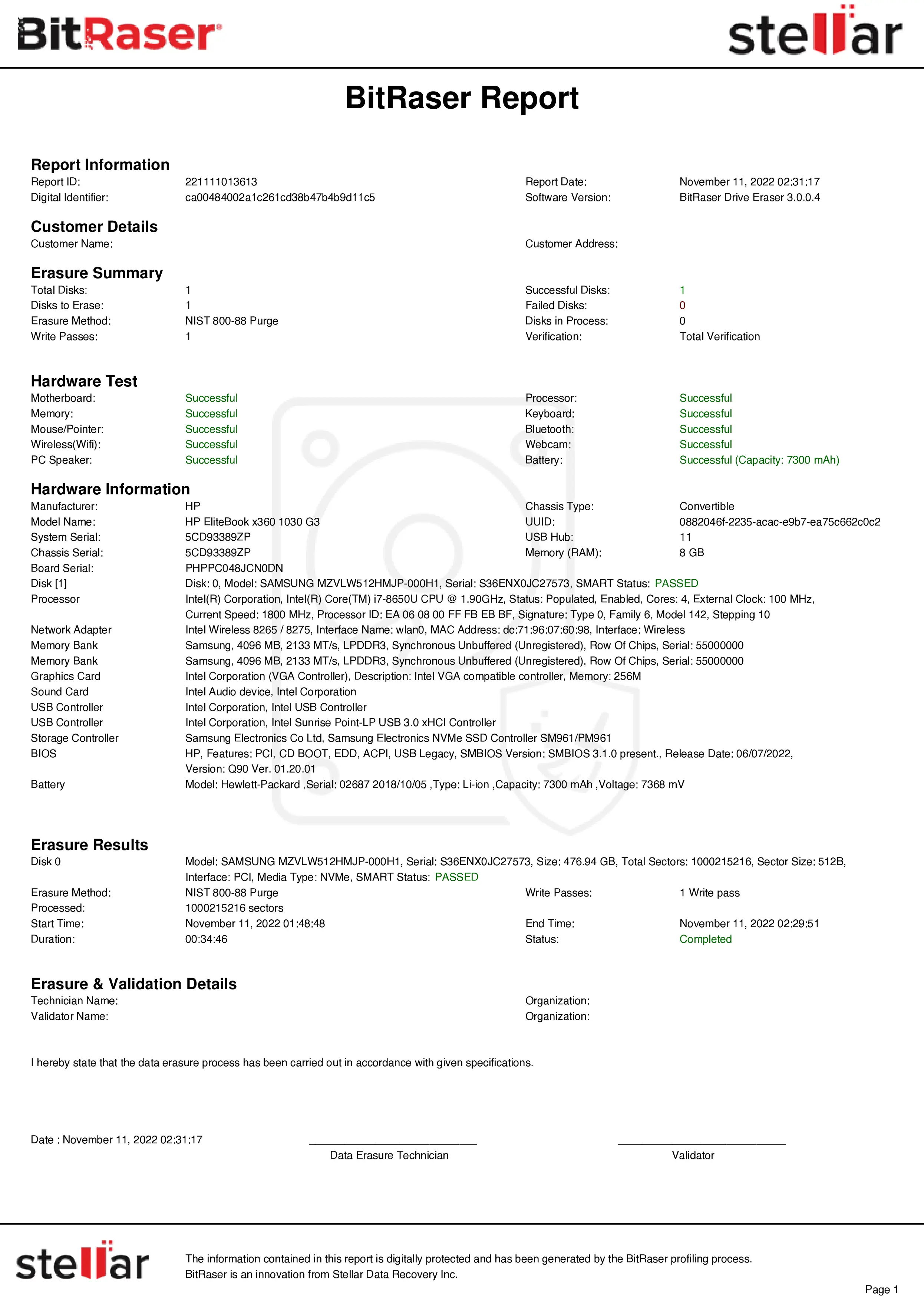
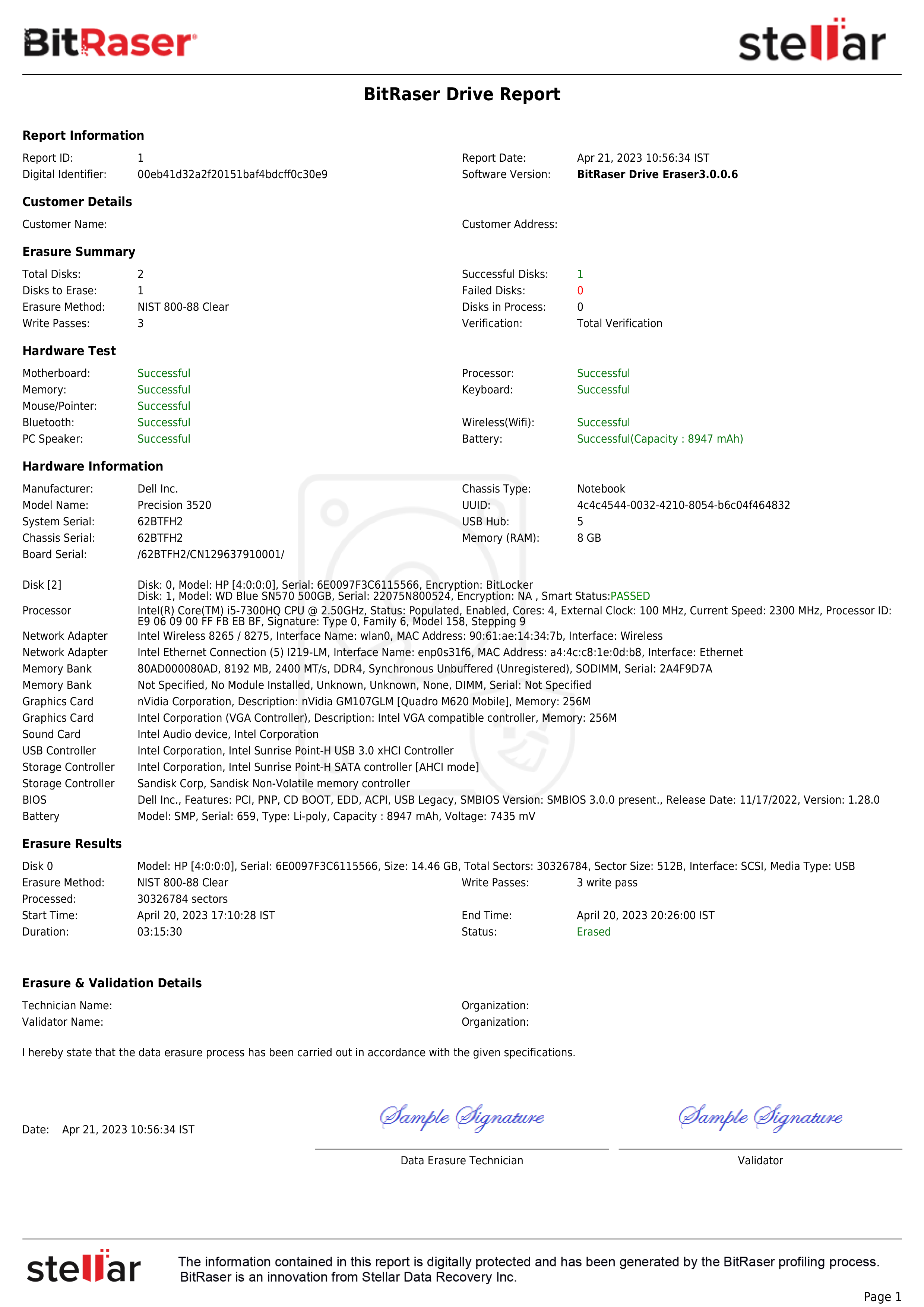
After erasure, detailed erasure reports and certificates can be viewed and downloaded from the BitRaser Cloud Console.
Optional: Perform Hardware Diagnostics
BitRaser Drive Eraser & Diagnostics also provides the option to perform hardware diagnostics using the ‘Component Test’ tab. Those customers looking to erase and diagnose simultaneously can customize the ISO accordingly, or can go to settings and choose ‘Run diagnostics with erasing’ (See Image 11). This way, ITAD and Enterprise ITAM can check the device’s health. Diagnostics is an Add-on and comes at an additional cost, though very nominal. So one must purchase BitRaser Hardware Diagnostics licenses separately.

Image 11: Choose Workflow
The software can perform multiple automated and manual tests for various hardware components, along with providing you with an option to assign a grade to the tested device.
Click on the ‘Component Test’ tab and then click ‘Start’ to begin diagnostics (See Image 12).

Image 12: Diagnostics UI
You can follow the on-screen instructions to complete the diagnostic process. Once done, the application will generate and upload a detailed diagnostic report on BitRaser Cloud Console.