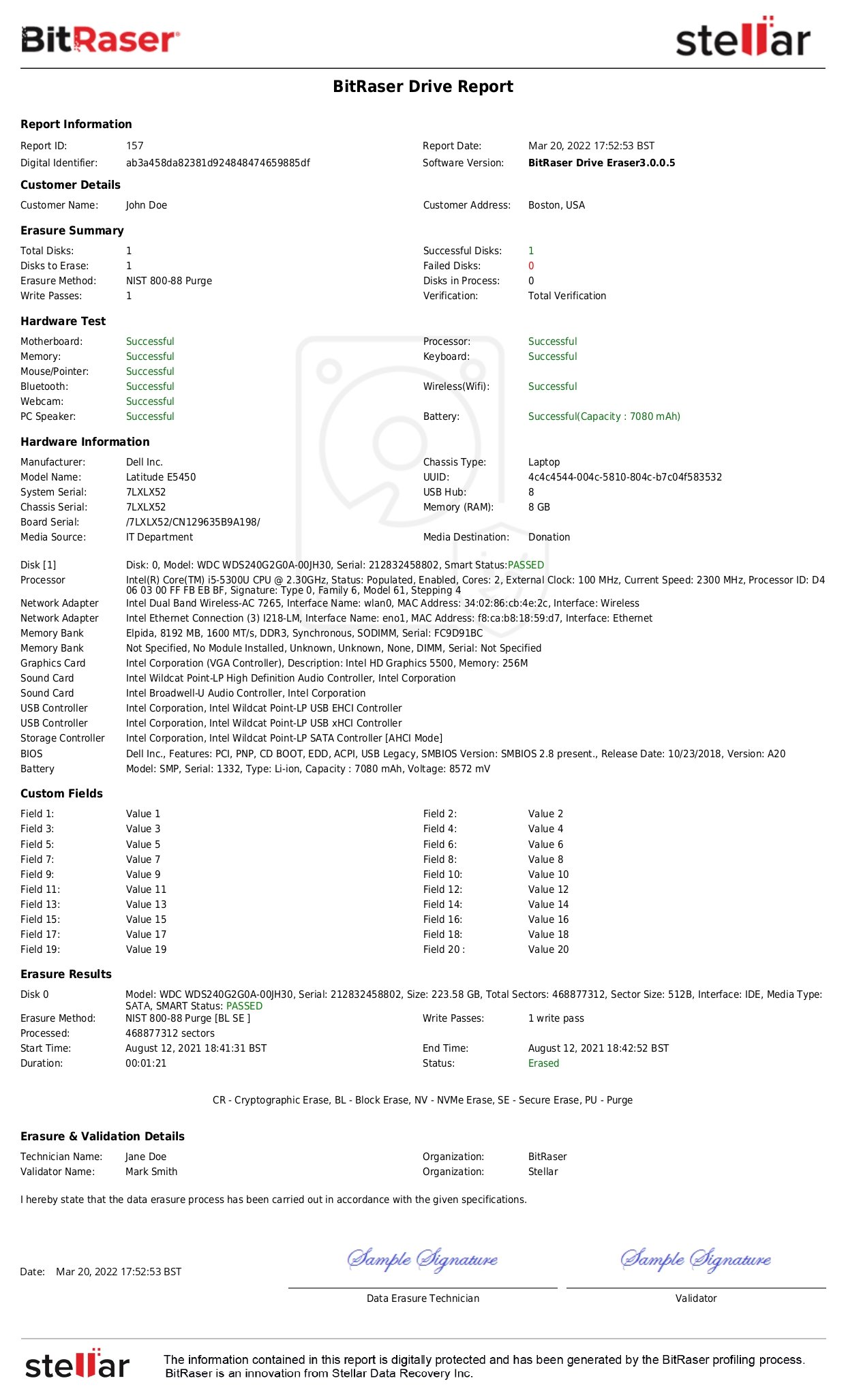
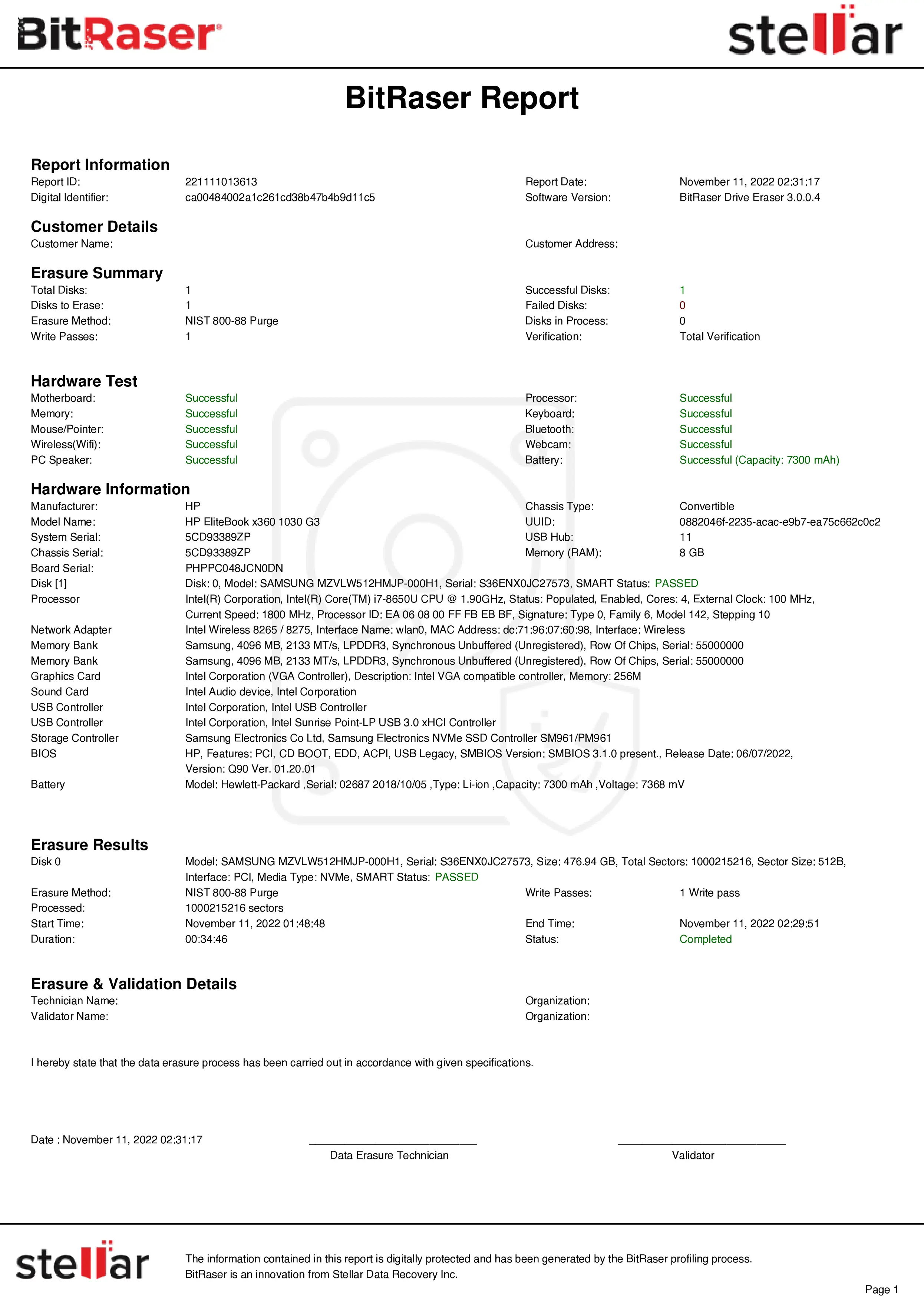
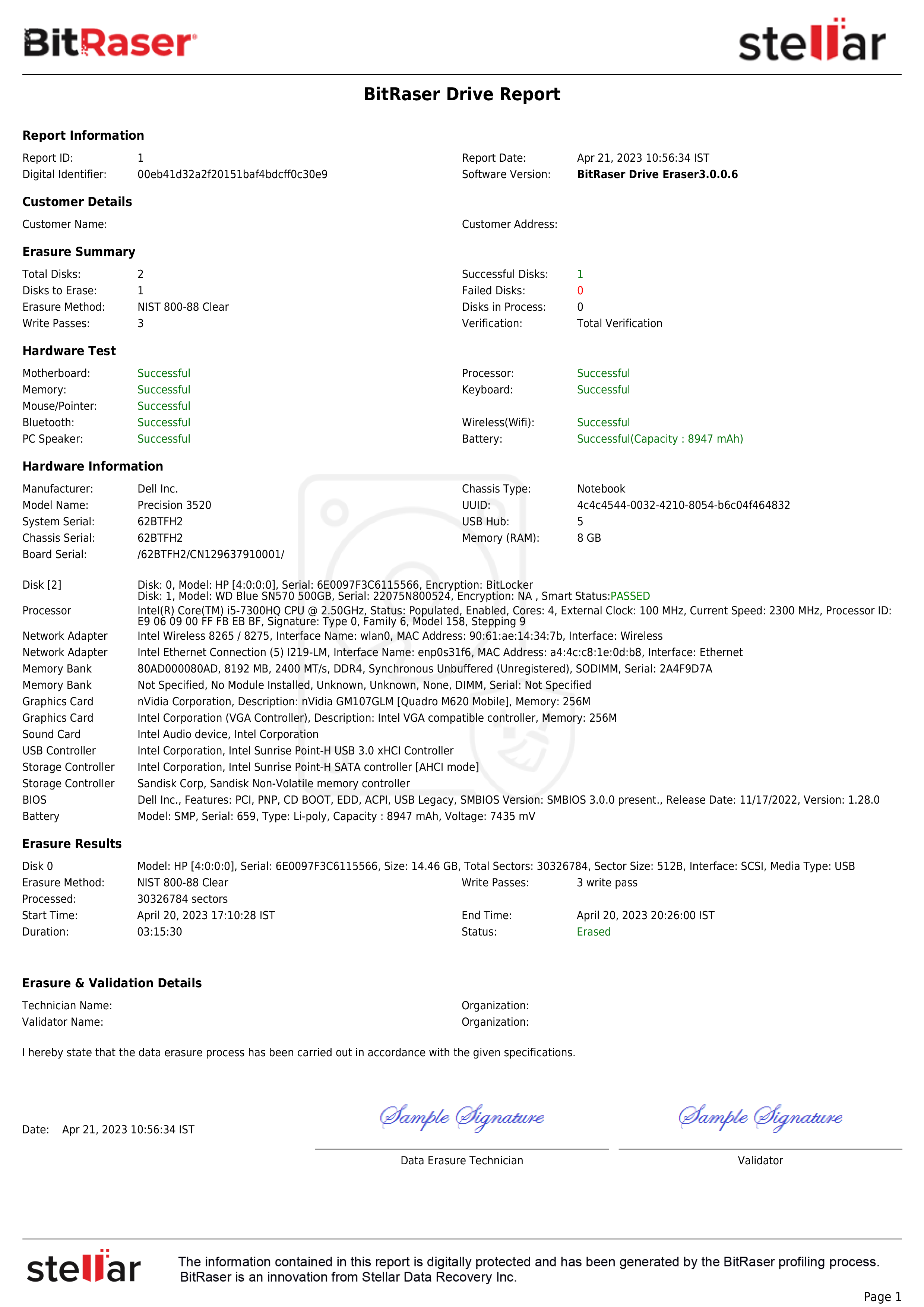
BitRaser Hardware Diagnostics allows organizations to evaluate the functional condition of laptops and PCs by testing components such as CPU, memory, storage, GPU, battery, Wi-Fi, USB ports, and other peripherals. The ISO customization feature in BitRaser Cloud Console enables administrators to preconfigure hardware tests, save server credentials, network settings, proxy configuration, and other essential fields before deployment. This helps standardize diagnostic workflows across multiple locations and reduces manual efforts during device testing, helping save 20% of the technicians' time.
Prerequisites:
There are no major prerequisites for using the software, except a stable internet connection and a USB drive for burning the software. Remember to check the technical specification of the machine on which the product is deployed.
Technical Specifications:
- Processor: x86 or x64 Processor
- RAM: 4GB minimum
- USB: Port 2.0 / 3.0
Steps to Customize BitRaser Hardware Diagnostics ISO File
Step 1: Log in to your BitRaser Cloud Console using the credentials provided after purchasing the product.
Once logged in, you will see the dashboard showing available licenses (See Image 1a).

Image 1a: BitRaser Cloud Console Main Dashboard
Step 2: From the left panel, click Customize ISO → Create Custom ISO (See Image 1b).

Image 1b: Customize BitRaser ISO
The ISO customization wizard appears, which helps you create a customized ISO. Choose the software version that you want to customize and then click ‘Customize’ (See Image 1c). You can find the ‘N-1’ version as well.

Image 1c: Choose Software Version and Click Customize
Step 3: Next, choose the BitRaser Hardware Diagnostics variant that you want to customize, including the Cloud, Network Cloud, or Offline Variant.
The available variants are:
- Cloud Variant: Designed for internet-enabled locations and deployed using a bootable USB, the cloud variant stores reports in the cloud console, and the licenses are retrieved online.
- Network Variant: This variant is used to perform hardware diagnostics in a PXE network environment, allowing multiple systems to run hardware diagnostics simultaneously with centralized reporting. It also stores reports in the cloud and retrieves licenses online.
- Offline Variant: Designed for locations without internet access. It is deployed using a USB, and the reports are saved locally on it.
Select the desired variant and click Next to proceed. For this KB, we are selecting the ‘Cloud Variant’ (See Image 2).
Then, click ‘Next’.

Image 2: Select BitRaser Hardware Diagnostics Variant to Customize
The customization feature allows you to configure multiple parameters across different sections.
Note: Configuring any tab is optional. If no changes are required, you can skip the current tab by clicking Next and continue with the setup.
Step 4: In the General tab, select the keyboard layout and choose whether to generate a detailed diagnostic report. Select the test mode: ‘Quick’ for faster checks or ‘Advance’ for deeper analysis. Choose the required ‘Auto’ and ‘Manual’ tests based on hardware components. In Advance mode, configure key parameters such as CPU stress duration, memory testing, and other thresholds. Longer durations help detect intermittent issues. After selecting the required tests, click ‘Next’ to proceed (See Image 3a & 3b).

Image 3a: General Tab

Image 3b: Device Advanced Settings
Using the Server tab, you can save BitRaser Cloud Console credentials.
Step 5: In the Server tab, configure the connection to the BitRaser Cloud server.
Enter the following details:
- Host Name or Server IP
- Username
- Password
Optional settings:
- Auto Connect to Cloud Account
- Enable HTTPS Support
Saving these credentials allows the software to automatically connect to the cloud console. Click ‘Next’ to continue (See Image 4).

Image 4: Server Tab
Step 6: In the Network tab, configure how the software will connect to the internet. The available options include:
- DHCP (Auto): Automatically obtains network settings from the DHCP server.
- Wireless Configuration: If wireless is enabled, you must enter the SSID name and network password.
Click ‘Next’ to continue (See Image 5).

Image 5: Network Tab
Step 7: If your organization uses a proxy server, select the ‘Enable Proxy’ option, and enter the details, then click ‘Next’ (See Image 6).

Image 6: Proxy Tab
Step 8: The Custom Fields tab allows you to input information that will appear in diagnostic reports. You may configure fields such as:
Customer Details:
- Customer Name
- Customer Location
- Media Source & Destination
Likewise, technician and validator details can be entered.
These fields help maintain traceability and audit records for device testing (See Image 7a). You can also ‘Enter Custom Fields’ to input the ‘Custom Field Name’ & ‘Custom Field Value’ and then click ‘Next’ (See Image 7b). You can enter up to 20 custom fields.

Image 7a: Custom Fields Tab – Enter Details

Image 7b: Custom Fields Tab – Enter Custom Fields
Step 9: The Notes section allows you to add comments related to the ISO configuration. These notes can be used to identify your deployment environment, customer project, or a specific testing configuration. After entering the notes, click ‘Submit’ (See Image 8).

Image 8: Notes Tab
Once the configuration is submitted, the console begins generating the customized ISO. You will see a message indicating, “ISO Customization is in process. Please wait…”
After completion, the customized ISO becomes available in the console for download (See Image 9). You can then download the customized ISO and create a bootable USB to run hardware diagnostics on laptops and PCs. Alternatively, the ISO can be deployed through a PXE server to run diagnostics on systems over the network.

Image 9: Customized BitRaser Hardware Diagnostics ISO Download Screen
To know how to use the software to diagnose the health of a PC or laptop, you may refer to our deployment guide on How to Perform Hardware Diagnostics?