PXE (Preboot Execution Environment), usually pronounced as pixie, is a standardized client-server protocol that enables a computer to boot directly from a network without requiring any local bootable media such as USB drives, CDs, or hard disks. It works by allowing a client machine to communicate with a central server during startup and load an operating environment over the network. In enterprise environments, PXE is widely used to deploy operating systems and software across multiple systems simultaneously from a centralized setup.
Key Requirements for PXE Boot Setup:
- Machine Type: Standard Server Machine with a minimum of 16 GB RAM
- Server OS: Windows Server 2016 or 2019
- Switch: Network Switch
- Active Directory Configuration
- DNS Configuration
- DHCP Configuration
- WDS Configuration
- IIS Server Configuration
- Other: Ethernet Cables
How to Deploy BitRaser Drive Eraser via PXE Boot?
Our BitRaser PXE deployment team will coordinate with you to understand your network setup and configure the environment for bulk data erasure over a network. You may also contact us through the ‘Support’ section to get started with PXE deployment. Once the setup is completed, follow the steps below to begin erasing drives and devices over the network.
Steps to Erase Drives Using BitRaser Over a Network via PXE Boot:
Step 1: Using the login credentials received on your registered email, log in to BitRaser Cloud Console. Download ‘Network Variant: BitRaser Drive Eraser & Diagnostics’ ISO on your machine from the ‘Download BitRaser’ section (Refer to Image 1).

Image 1: Download Network Variant of BitRaser
Step 2: Power on the target machine and open the boot menu by pressing the required key, such as F12, Esc, or Del, depending on the manufacturer. From the boot menu, select ONBOARD NIC (IPv4) and press Enter (Refer to Image 2).

Image 2: One-Time Boot Settings
Step 3: Restart the device. The system will now connect to the PXE server and begin booting over the network. The ‘BitRaser Network Boot’ screen will appear. Select BitRaser_x86_64-Network and press ‘Enter’ (Refer to Image 3).

Image 3: BitRaser Network Boot Menu
Step 4: The BitRaser Boot Menu will appear. Select BitRaser and press Enter to continue (Refer to Image 4).

Image 4: BitRaser Boot Menu
Once the system boots, all connected drives will be displayed on the main interface (Refer to Image 5).

Image 5: Main UI BitRaser Drive Eraser & Diagnostics
Step 5: Go to Settings < Network and connect the system to the internet using Ethernet or Wi-Fi (Refer to Image 6a).
Next, go to Settings < Server and connect the application to ‘BitRaser Server’ using the credentials shared via e-mail. This allows the application to sync erasure licenses and save erasure reports on BitRaser Cloud (Refer to Image 6b).

Image 6a: Connect to the Internet

Image 6b: Connect to BitRaser Server
Step 6: Select the erasure method, verification type, and the drives that you want to erase, then click 'Erase.'
Note: If you are using a pre-configured BitRaser Network ISO, these settings may already be applied.
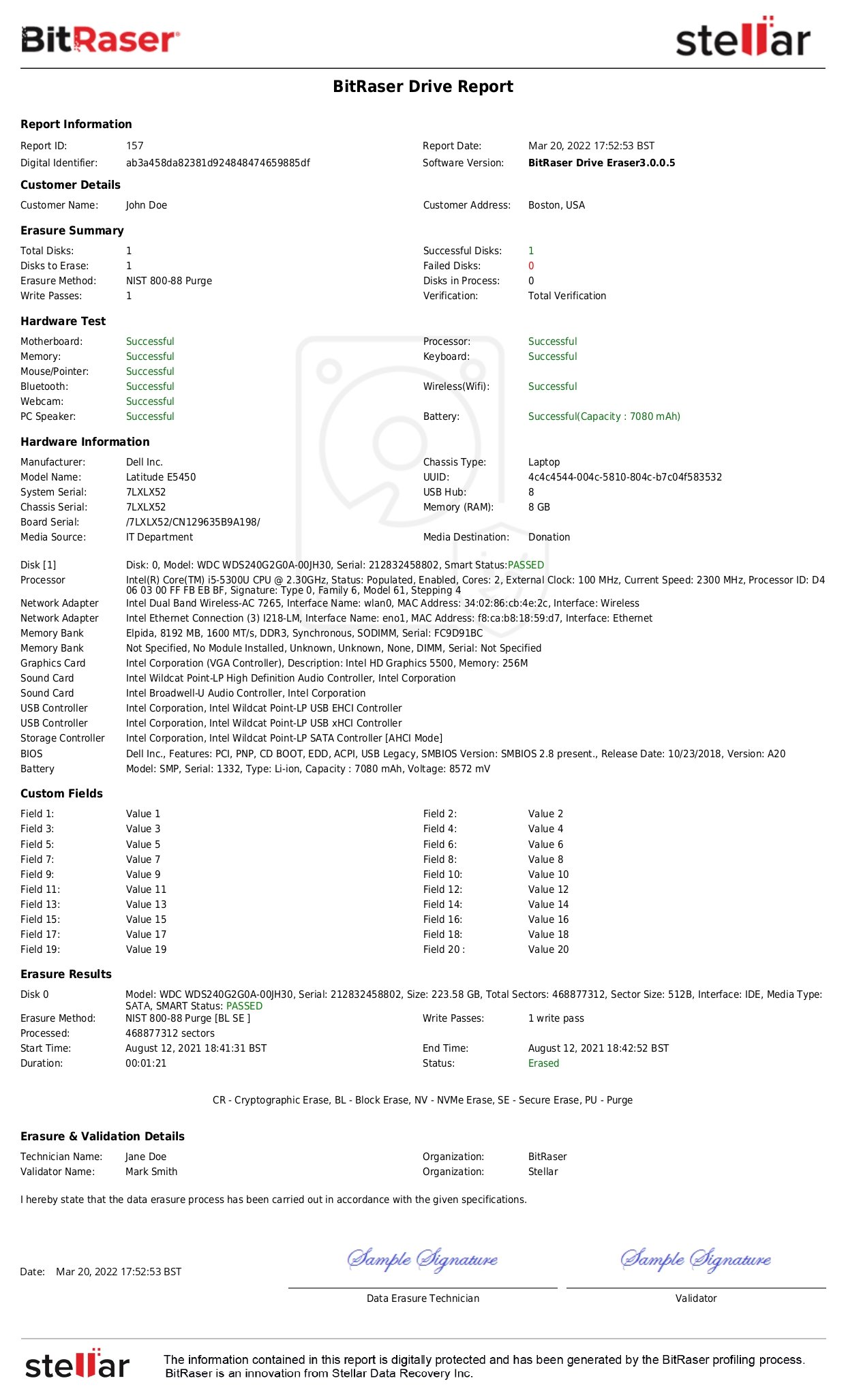
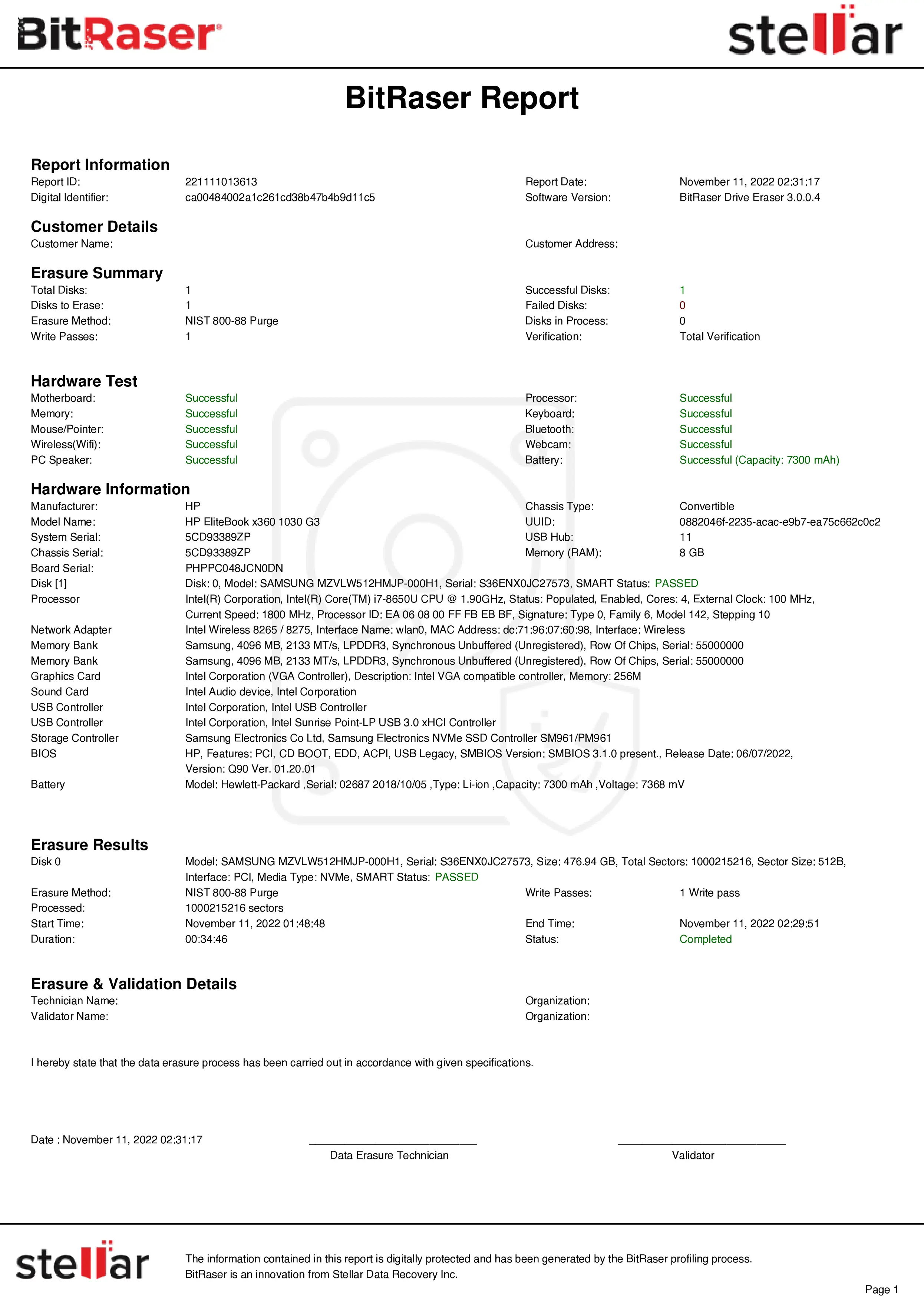
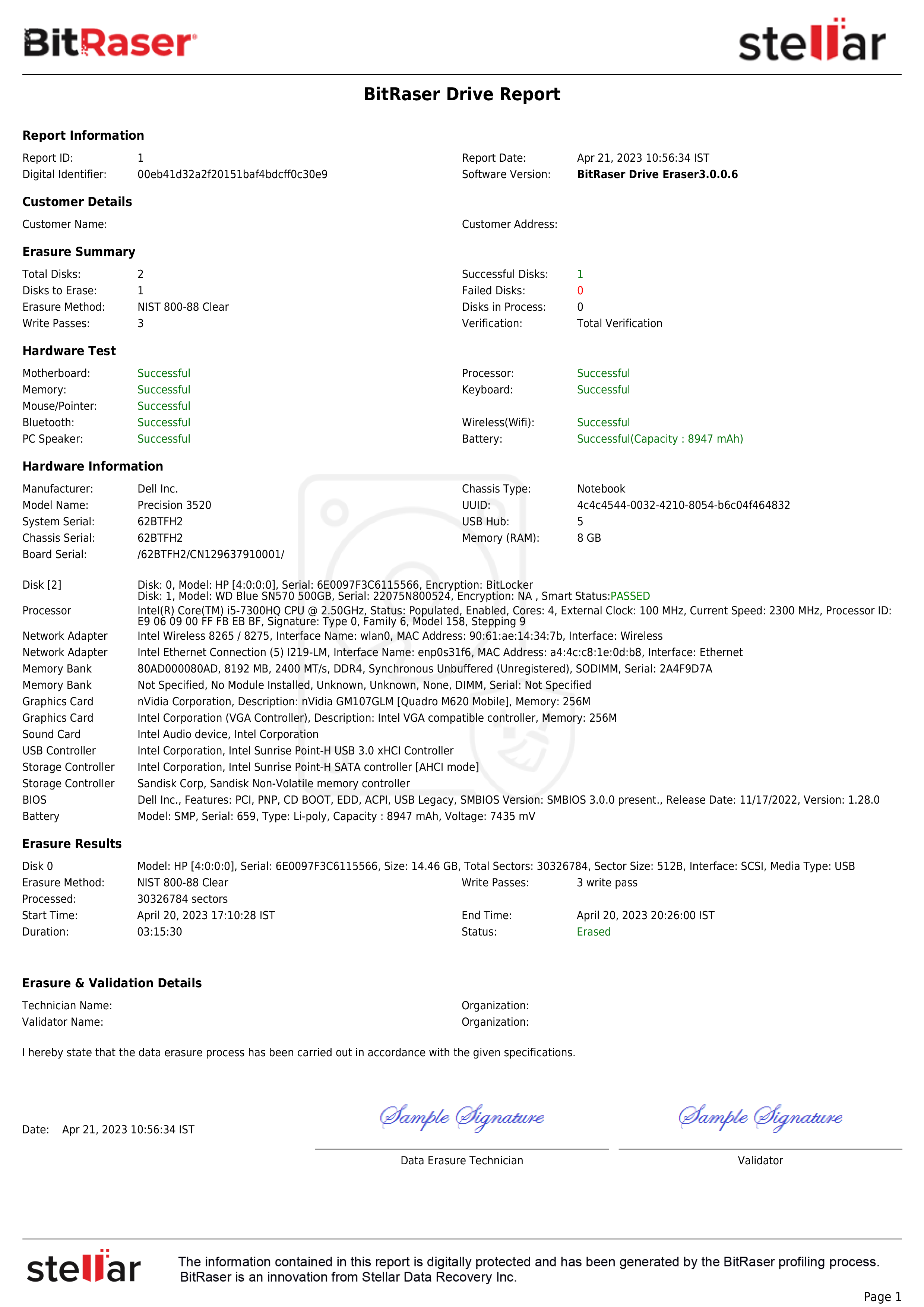
Once the erasure process is completed, all data on the selected drives is permanently erased. Detailed erasure reports are automatically generated and uploaded to your BitRaser Cloud account.
With the unified BitRaser Drive Eraser & Diagnostics build, diagnostics functionality is available within the same interface. If you have purchased BitRaser Hardware Diagnostics licenses, you can assess the condition of devices alongside erasure.
Optional: Perform Hardware Diagnostics
The software allows you to configure the application to perform either erasure only or both erasure and diagnostics. This can be set through the Settings menu or via ISO customization (Refer to Image 7).

Image 7: Process Settings – Choose Default Process
Step 1: Open the ‘Component Test’ tab to access the diagnostics section, then click ‘Start’.
Step 2: The software will begin performing the automatic tests and prompt you to begin manual testing. These tests require you to perform an action on the screen, validate the response, and then move to the next test.
The application performs the following diagnostic tests (The actual tests may vary as per device):
- Automated tests performed by the software:
- CPU
- Memory
- Battery (only for laptops)
- Storage
- Ethernet
- GPU
- Monitor
- CMOS
- System Board
- Manual tests performed by the software:
- Keyboard
- Mouse/Touchpad
- Microphone
- Audio
- Display
- Webcam
- Wi Fi
- Bluetooth
- Fingerprint
- Touchscreen
- Ports (USB, Display, Aux, and Mic)
- Accessories and Grading